.png?width=116&height=40&name=Logo%20dark%20(1).png)
With Dubly.AI, translating videos into multiple languages is simple and user-friendly. This guide walks you through the process of translating your first video while ensuring the best possible results.
1. Sign Up & Log In
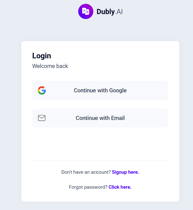
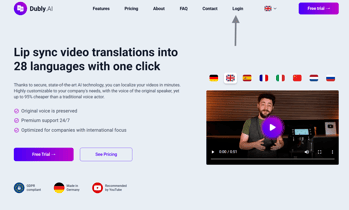
Start by signing up for a free Dubly.AI account. You can register via Google or with your email address. If you already have an account, simply log in.
2. Upload Your Video
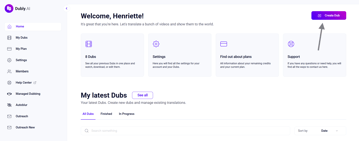
To create your first translation (Dub), click on "Create Dub". You have two options:
- YouTube Link: Paste the URL of a YouTube video.
- Direct Upload: Drag and drop your video file directly into the platform.
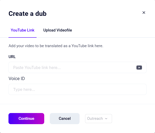
3. Set Language Preferences
Choose the original language of your video and select one or multiple target languages for the translation. Dubly.AI currently supports many languages, including English, Spanish, French, and German.
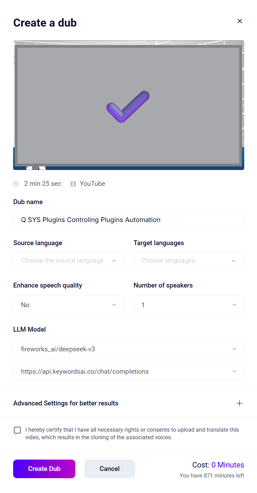
4. Audio Settings
- Background Noise Detection: It’s recommended to select “Yes” if your video contains background noises, as this improves translation quality.
- Speaker Count: Specify how many speakers are in the video for better accuracy.
- Advanced Settings (Optional): Add a context prompt (1-2 sentences describing the video topic) to help Dubly.AI recognize key terms more accurately.
Tips for Best Results
-
- Always provide a Context Prompt for better accuracy.
- Choose Background Noise Detection if the audio quality isn't perfect.
- Review and adjust translations manually for brand-specific terminology.
5. Start Translation
Once all settings are configured, simply start the translation process. Dubly.AI will automatically generate the translated audio tracks.
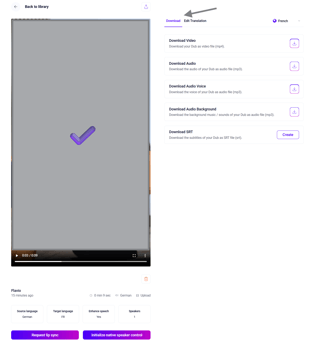
7. Review & Edit
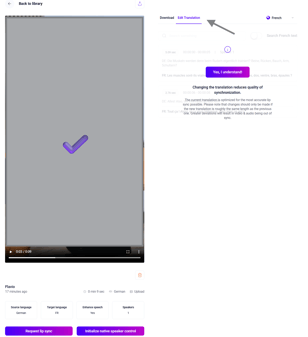
After the translation is complete, you can preview the result and edit the transcription if necessary to ensure maximum accuracy.